
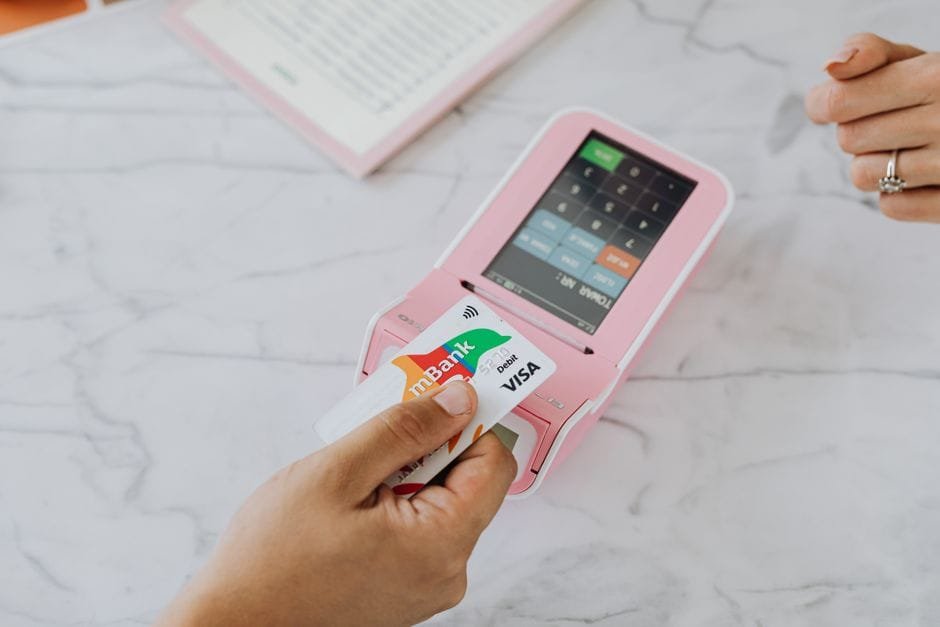
Apple Pay Philippines finally landed, and it’s Visa doing the heavy lifting. If you’ve been tapping your physical Visa card for years, this is the clean upgrade: same terminals, fewer fumbling moments, and way less risk of leaving your card at the counter. The short version? If your bank is part of Visa’s Apple Pay rollout, you can add your card and start paying today.

Which Visa cards and banks work today
Visa publicly confirmed Apple Pay support for cardholders in the Philippines, which means credit and debit Visa cards from participating issuers are eligible. YugaTech’s rollout update lists the initial issuing banks now live, and Revu PH confirms that wallets are already working for real transactions. Not every Visa card will be supported on day one, because each bank switches this on at its own pace. So the smartest move is simple: check your bank’s page or try adding your card in Apple Wallet. If it adds without error and you get a verification prompt, you’re in.
Expect this pattern: major banks go first, then more issuers catch up over the next weeks. Some banks might limit support to credit at launch, with debit and prepaid following. That’s normal for payments rollouts. If your card doesn’t add yet, don’t rage-uninstall Wallet. Just wait for your bank’s announcement or update your bank app; the toggle might flip quietly.
Quick gut check before you try:
• Your iPhone, Apple Watch, iPad, or Mac is on a recent OS version.
• Your card has a Visa logo and online transactions enabled (some banks let you toggle this in-app).
• Your bank’s SMS or in-app OTP system is working, because verification often runs through it.
Apple Pay Philippines: where it works in stores vs. online
In-store is the easy win. Anywhere you see the contactless symbol and your Visa card already taps, Apple Pay should work the same. The cashier doesn’t need to press a special key. Just say “card” or “credit/debit,” wait for the terminal to listen, then hold your iPhone or Apple Watch near it. If the store disables contactless by policy—some mom-and-pop shops still do—you’ll have to insert your physical card. But big chains and most modern terminals are fine.
Two gotchas to avoid:
• Don’t hover too early. Let the cashier key the amount first so the terminal is actually ready.
• If the tap fails once, try again after the terminal beeps or re-prompts. Many terminals timeout fast.
For online payments, look for the Apple Pay button at checkout on Safari or in supported apps. This works when the merchant’s payment gateway has enabled Apple Pay for the Philippines. Revu PH confirms that online and in-app payments are already processing here, which is great, but adoption will grow in waves. Some sites may show the Apple Pay button on iPhone but not on desktop, or vice versa, depending on how they integrated it.
Good signs you can expect more online acceptance soon: Visa is already onboard, local gateways usually follow once the network clears the region, and merchants like fewer failed checkouts. Less typing, more paid orders. Everybody wins.

What Filipino users should expect next
First, more banks. Rollouts like this rarely stop with a small list. If your issuer isn’t on YugaTech’s initial roundup yet, watch their social pages or bank app inbox. Some banks ship Apple Pay support without fanfare, because the real work is on the backend and in app updates.
Second, better online coverage. Gateways and big e-commerce platforms move fast when there’s demand. The Apple Pay button tends to spread from travel and digital goods to retail and food delivery once early kinks are out. If you run a small shop, ask your payment provider if they support Apple Pay now; your conversion rate will thank you.
Third, watch for promos or fee changes. Banks sometimes run limited-time cashback to nudge adoption. Don’t rely on it, but keep an eye on official pages. If you’re budgeting hard, Sobrang worth it to catch those limited boosts.
Quick setup and pro tips that actually help
Setup is straight from Wallet on your iPhone: add card, confirm with your bank, done. If your bank prefers verification inside its own app, Wallet will push you there. That’s normal and safer.
After you add a card, set a smart default in Wallet. For most, that’s your daily driver Visa. If you split expenses—say, groceries on one card, fuel on another—reorder your cards in Wallet and train a habit. Double-click side button, pick card, tap. Takes two extra seconds; keeps your budget honest.
On Apple Watch, enable the same card. For late-night convenience store runs or the MRT crush, it’s faster. Just remember this: your Watch unlock is your wrist. Keep your passcode on. Security aren’t suggestions.
For online checkout on a Mac, use Safari and sign in with the same Apple ID. Approvals can route to your iPhone or Watch. It’s cleaner than typing a 16-digit number at 2 a.m. while half-asleep after an all-nighter.
If a merchant says Apple Pay doesn’t work, try “contactless Visa” as your phrase. Some staff only know the network brand, not the wallet name. And if you’re in a tight queue, don’t debug the terminal there. Switch to chip and move on. You’re not the POS whisperer today.
Is Apple Pay worth switching to right now?
Yes—if your bank supports it today. You get the security of tokenized card numbers, less card exposure at shady terminals, and way faster pay times. For students pulling all-nighters, the difference between typing a card and Face ID is the difference between eating hot ramen and eating air. For IT folks who already live on tap-to-pay, this is just the cleaner stack: one secure wallet, hardware-level security, and fewer failed swipes.
If your bank isn’t live yet, don’t churn cards just for this. Support is expanding. Stick to what you have and check weekly. But once your Visa card is accepted, switch your default payments to Apple Pay for in-store and any online shop that offers it. Tipid na, masaya pa.

Apple Pay Philippines: where to verify your card and acceptance
To confirm your specific card and bank, use three checkpoints: Apple Wallet’s add-card flow, your bank’s official page or app notices, and the Apple Pay button at checkout in Safari for online stores. If all three align, you’re good. If not, something’s still rolling out. Give it time, or contact your bank support.
Sources and Further Reading
Visa brings Apple Pay to its customers in the Philippines — YugaTech
Apple Pay launches in the Philippines — YugaTech
Apple Pay now live in PH: How to set it up, pay in stores, and shop online — Revu PH
Disclaimer: Bank support, fees, and merchant acceptance can change without notice. Always check your issuer’s official page or app for the latest details.