
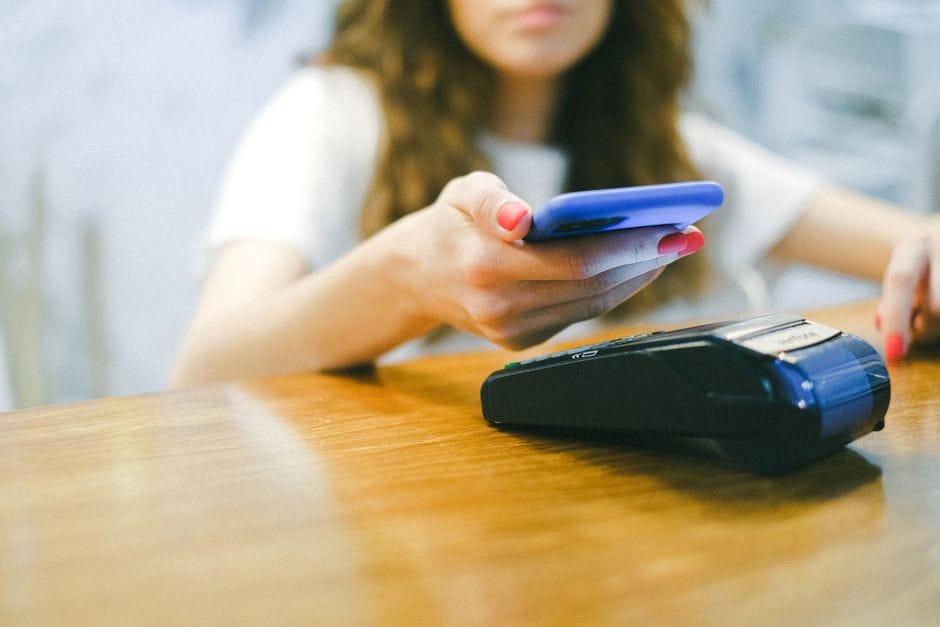
Apple Pay Japan just became a real option for Pinoys. Now that Apple Pay is live in the Philippines, you can set it up here, fly out, and tap in Japan for trains, convenience stores, and travel apps without juggling coins or fishing out your wallet. Here’s the setup that actually works for students pulling all-nighters, budget travelers, and anyone who wants fewer queues and more ramen.

Apple Pay Japan: set it up in the Philippines before you fly
Do the boring part at home while Wi‑Fi is fast. Add your Philippine card to Apple Wallet, verify with your bank, and make a small local test purchase. Based on launch info, initial supported banks include GoTyme, Metrobank, UnionBank, and China Bank. Visa support is confirmed, which matters abroad because many overseas terminals recognize Visa contactless. If your card isn’t supported yet, check your bank’s official page or wait for rollout.
Quick tech sanity checks that save you stress later: set a strong device passcode, update iOS/watchOS, turn on Face ID/Touch ID for payments, and pick a default card so you’re not swiping through options at the cashier. Then confirm your card works online by checking out on a local website or app that shows the Apple Pay button. If it works here, you’re set for most merchants that support Apple Pay overseas.
Paying in Japan’s convenience stores and shops
At the cashier, look for the contactless symbol or the Apple Pay mark. If you see it, you can pay with your iPhone or Apple Watch. Tell the cashier you’re paying by card if they ask (many will just point to the reader). Hold the top of your iPhone near the terminal, authenticate, wait for the beep, done.
Japan has multiple payment rails at the counter—IC cards, QR, and contactless credit/debit. If the cashier asks what type, just say “credit card” and point to the contactless icon. Some terminals default to local IC payments first; they may tap a button to switch modes. No need to hand over your phone—just tap the reader yourself.
Reality check: not every tiny shop uses contactless, and some vending machines are still cash or IC-only. Keep a small stash of coins for edge cases. But for most big-name stores and many restaurants, Apple Pay with your PH-issued card works where your network is accepted. Sobrang worth it when you’re running for your train on a cold night.
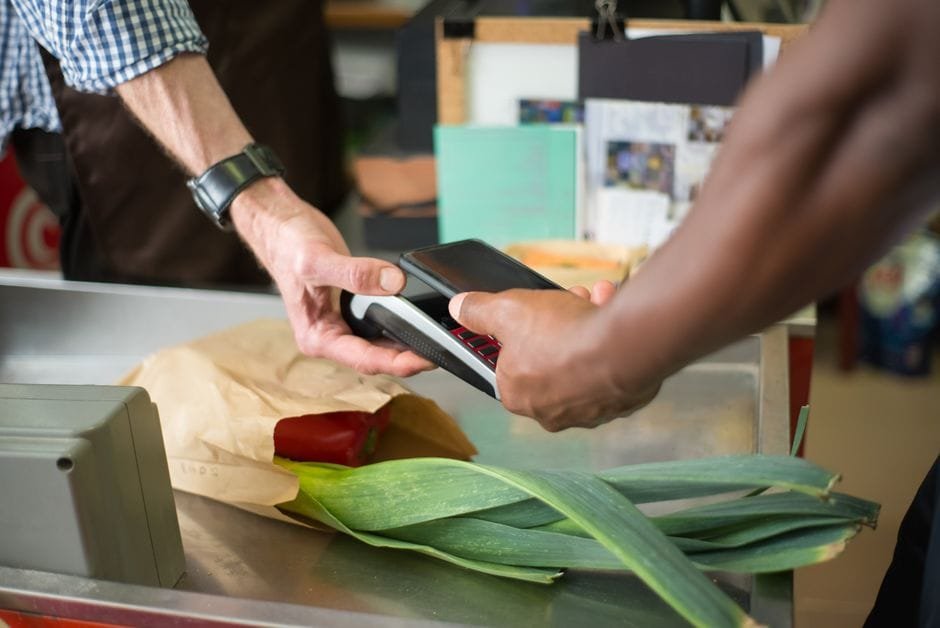
Transit: when you can tap, when you should grab a local card
There are two paths here, and which one you choose depends on the line you’re taking:
First, some operators support contactless credit/debit at the gates. If you see the contactless symbol at the turnstiles or the operator’s website confirms it for your route, you can try tapping your iPhone with your Philippine Apple Pay card. This is the simplest flow because you don’t have to top up anything—fares just charge to your card.
Second, coverage for contactless credit/debit on gates is still expanding and can vary by city and operator. If your route doesn’t support it, buy a local IC transit card from the station machine or counter and use that for trains and buses. It’s cheap insurance against missed trains. Keep a separate budget for top-ups, and you can still use Apple Pay for everything else outside the gates.
Pro move from an IT lens: before you head out each day, check your route on the operator’s official page, then screenshot the payment icons (contactless logo, etc.). If Wi‑Fi or roaming gets spotty underground, you still know what works at the platform.
Make tapping smooth and low‑friction
Set your most reliable card as the default in Wallet, especially if it’s a Visa card supported for Apple Pay in PH. Keep your phone awake as you approach the gate or reader, and hold the top edge flat to the sensor. If a terminal errors out, try a second reader or ask the staff to switch to contactless credit mode. Sometimes it’s just the wrong payment mode selected on their side.

Travel apps and online checkouts
Many international apps and websites show an Apple Pay button at checkout. When you see it, you can complete the purchase with your PH-issued card stored in Wallet. This is handy for quick hotel holds, museum tickets, or food orders because your billing details autofill and you skip typing on small screens.
Use Safari for the highest chance of seeing the Apple Pay button on web checkouts. If an app in Japan doesn’t show Apple Pay, switch to card payment and enter your card details manually—the same Apple Pay card still works as a normal card. No need to switch regions on your Apple ID for this.
Fees, limits, and backup plans
Foreign transactions have costs. Your bank may charge currency conversion or foreign transaction fees, and exchange rates shift daily. Check your card’s rates and limits in your bank app before departure. Also confirm international usage is enabled for in-store and online payments.
Have a backup: carry at least one extra physical card from a different bank or network, plus some cash for small shops and rural buses. Bring a power bank. If your battery dies, your phone can’t tap. Tipid na, masaya pa doesn’t apply to dead phones at the ticket gate.
Fixes for common hiccups
Reader rejects the tap? Ask the cashier to select card/contactless mode and try again. Some terminals default to local IC first. If you have multiple cards in Wallet, switch to another card that uses a different network. When in doubt, pay with the physical card or cash and move on—your time in Japan is better spent on ramen than at a stuck terminal.
Online checkout fails? Try Safari, disable VPN, or switch to mobile data if hotel Wi‑Fi is flaky. Check your bank app for declined alerts and approve the transaction if there’s a security prompt. If the merchant requires a local address or phone format, follow their format hints.
Why set this up as a Filipino traveler
Once Apple Pay is running on your PH card, paying abroad becomes muscle memory. You keep your card details private, you get consistent two-factor checks via your phone, and you stop fumbling with notes and coins at peak hours. For budget trips, that speed often means catching the earlier train, grabbing a discount bento, and getting to your hostel before reception closes.
Sources and Further Reading
Apple Pay now live in PH: How to set it up, pay in stores, and shop online
Visa brings Apple Pay to its customers in the Philippines
Apple Pay launches in the Philippines
Disclaimer: Bank support, fees, transit acceptance, and store policies change. Always check your bank and the official transit or merchant page before you pay.